FAQs for Sothink SWF Decompiler for Mac
- I can't install the previous version of Sothink SWF Decompiler for Mac after upgrading to the latest version? How to go back to previous one?
- How do I export a shape?
- How do I export an image?
- How do I export a sound?
- How do I export a font/sprite/button/frame?
- Does Sothink SWF Decompiler support FLEX?
- Can I export several SWF files at the same time?
- How to view export record when exporting multi-file?
- Does SWF Decompiler for Mac show AS Class structure like folder-tree?
- How can I make the characters display correctly?
- Can I export ActionScript file into HTML format?
- Can I choose FLA version when exporting SWF into FLA?
- How can I snapshot the image for Flash movie in Sothink SWF Decompiler?
- I tried to scan a movie and Sothink SWF Decompiler for Mac generated an error, or crashed?
- Can I get Flash movie from Browser?
- How to set Sothink SWF Decompiler for Mac as default program to open SWF?
- Does Sothink SWF Decompiler for Mac support multi-language interface?
- How to quick open the recent files?
- I can't install the previous version of Sothink SWF Decompiler for Mac after upgrading to the latest version? How to go back to previous one?
If you would like to go back to the previous version for some reason, please follow the below steps to make it come true:
If you would like to go back to the previous version for some reason, please follow the below steps to make it come true:
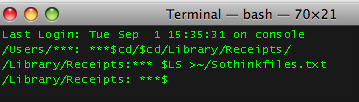
a) Click "Finder" on the desktop, pick menu command Go > Utilities. You will find the application "Terminal", double-click it to make it run. Please input the following command line on "Terminal" window.
cd /Library/Receipts/
ls > ~/sothinkfiles.txt
This command is used to write the names of all the files under directory "/Library/Receipts" to file "sothinkfiles.txt", and you can find file "sothinkfiles.txt" in current user directory "users/***".
The figure will be like this after inputting the command line:
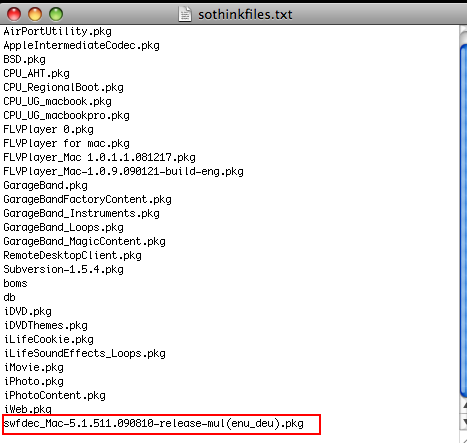
b) Open sothinkfiles.txt to browse the file list within the defined folder; and then find the related items including the text "swfdec_Mac" or "Sothink SWF Decompiler for Mac"; finally, delete these files from the specific directory "/Library/Receipts/".
c) Re-install the previous version of Sothink SWF Decompiler for a try.
Now, you can install the previous version of Sothink SWF Decompiler for Mac.
If the problem still exists, please provide sothinkfiles.txt to support@sothink.com for further check.
For exporting a shape with SWF Decompiler for Mac, first select that SWF file in Explore panel and play it in preview window; check "Single File Export" option and all resources will be listed in Resources panel automatically, click Shape folder to expand it and show all shapes, and click any shape to view it in preview window; then pick the shape you want to export by checking the square box in front of it; last, click the "Extract" button to set save directory and file format in the popup window. Now you have exported the shape successfully. Sothink SWF Decompiler supports exporting the shape in *.swf , *.fla or *.gls format. You can choose either during exporting.
For exporting an image with SWF Decompiler for Mac, first select that SWF file in Explore panel and play it in preview window; check "Single File Export" option and all resources will be listed in Resources panel automatically, click Image folder to expand it and show all image thumbnails, and click any image to view it in preview window; then pick the image you want to export; last, click the "Extract" button to set save directory and file format in the popup window. Now you have exported the image successfully. Sothink SWF Decompiler supports exporting the image in JPG, PNG, FLA or BMP format.
For exporting an sound with SWF Decompiler for Mac, first select that SWF file in Explore panel and play it in preview window; check "Single File Export" option and all resources will be listed in Resources panel automatically, click Image folder to expand it and show sound files, and click any sound to play it; then pick the sound you want to export ; last, click the "Extract" button to set save directory and file format in the popup window. Now you have exported the sound successfully. Sothink SWF Decompiler supports exporting the sound in the required format (.mp3 or .wav).
For exporting Font/Text/Sprite/Button/Frame with SWF Decompiler for Mac, first select that SWF file in Explore panel and play it in preview window; check "Single File Export" option and all resources will be listed in Resources panel automatically, click Font/Text/Sprite/Button/Frame folder and click the "Extract" button to set save directory and file format in the popup window. Now you have exported them successfully. The font, sprite, button, frame will be exported in SWF format.
Yes. Sothink SWF Decompiler for Mac not only supports exporting the normal SWF to FLA files, but also exporting SWF made by FLEX to FLEX project files or FLA format. When decompiling SWF files, the program will parse SWF file type firstly, and then pops up the corresponding window automatically to export the related file formats.
Yes, you can decompile and convert multi-file to FLA files at the same time, or export the resources to the certain file format for reusing.
When exporting multiple SWF, check "Save user information into file" in "Preference > General" dialog, you can save the export record to LOG file.
To view this export record file, please enter the folder "Root directory > Users > (the current user) > Documents > Decompiler Data > Logs" to find DecompilerRunLog(date).log. Here shows the detailed process, including parsing file, export FLA and export resources. If the end line shows "Multi-Export Tread is finished.", that means all the SWF have been exported successfully.
Check the button "Clear" in "Preference > General" dialog, all the export record files will be deleted.
Yes. In Resources panel, optimize the display of ActionScript in Resources Panel. When decompiling AS3.0, support showing AS Class structure like folder-tree according to its path in package.
Encoding can encode Flash in the proper language when including the characters in Flash, which is different from your default system language; and make the Flash display correctly in the program. You can click "Format" on the menu bar, and then check "SWF Encoding" to choose the proper language.
Yes, in order to view ActionScript files easily and clearly, you can export the AS files into HTML format.
Yes, you can select the file version for the exported FLA. Supported formats include Macromedia Flash MX (Flash 6), Flash MX 2004 (Flash 7), Flash 8, Flash CS3, Flash CS4, Flash CS5 and CS6
If you want to take a snapshot for Flash movie in the preview window, you can click the button "Snapshot" in the preview window to save the image. The captured images usually are saved to the desktop.
Please send this error in detail report and the SWF file to support@sothink.com. This will help us to check the problem and improve the program. Thanks.
Yes. You can catch Flash movies (*.swf) when you are browsing movie pages in Firefox and then save them in your local folder. After you install Sothink SWF Decompiler for Mac, you will be informed to download and install Sothink Flash Downloader For Firefox when launching the program for the first time; and also, check the menu item "Help" to select the option "Get Flash Downloader For Firefox" to view the relative information.
Click the SWF file with "Ctrl" key pressed down and pick the option "Get Info" from the context menu. Choose "SWFDecompiler" from "Open with" section in the window "Info" and close the window. Now you can double-click a SWF file and open it in SWF Decompiler directly.
Yes, of course. Sothink SWF Decompiler for Mac can auto display the corresponding interface language according to system language on your computer, the available languages include English, French and German. So, you just set the system language as the required language, the program will display the related language as interface after re-launching Sothink SWF Decompiler for Mac.
You can check the command "File > Open Recent..." to open and view recently browsed SWF files. Setting the maximum number of files that can appear in the recent list is allowed.
-
About Sothink SWF Decompiler for Mac
- Sothink SWF Decompiler for Mac is a professional SWF to FLA, SWF to FLEX, SWF to HTML5 converter on Mac OS X. It easily extracts Flash resources like shape, image, sound (mp3, wav), video (flv), text, sprite, ActionScript, etc; Edit SWF by replacing image/shape/text/sound elements; Supports Flash CS3/CS4/CS5/CS6 and ActionScript 2.0/3.0; Able to get XFL file from Flash CS5 SWF; decompile SWF containing TLF text Globally searches all ActionScript; Exports SWF resources in batch; Multilingual and user-friendly.



Product Info
- File Size: 23 MB
- Latest version: 7.1
- Build number: 1899
- Release date: May 3, 2012
- Uninstall: Supported
- System Requirements:
Mac OS X 10.6 or above
Reviews
- "I was always a fans of the sothink swf decompiler for Win. And now i can use it on Mac! Exciting! User friendly interface, extracts SWF effortlessly and quickly."
- Ofena
- "Thank you for sorting that out quickly for me. Using your product now - seems very good : ) I posted on your forum too."
- Stuart McNeill
Related Products

- SWF to Video Converter
- Flash to Video Converter, Convert Flash to Video AVI!

- Video Encoder for Adobe Flash
- Convert Video to Flash (FLV and SWF)!

- SWF Quicker
- Leading Flash SWF editor to open and edit SWF directly!

- Quicker for Silverlight
- Make Silverlight animation the same way with Flash creation!