Export Resources Dialogue
When you select the elements you want to export and click the "Export Resources" button, you will see this dialog.
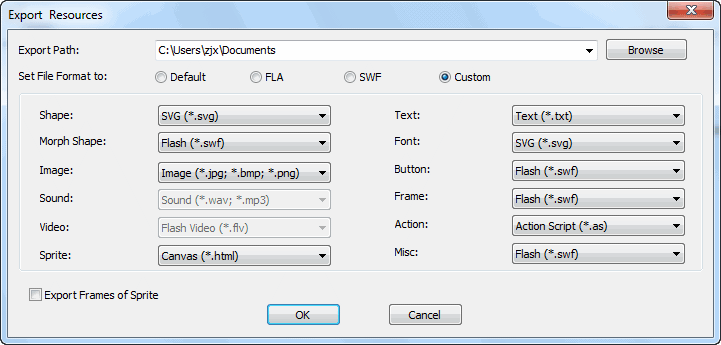
Path: Here shows the export directory where you want to store the exported files.
 New Folder: Click this button to create a new folder in
current directory.
New Folder: Click this button to create a new folder in
current directory.
File format
- Shape file will be exported as *.fla, *.swf or *.gls.
- Morph Shape file will be exported as *.swf or *.fla file.
- Image file will be exported as *.jpg, *.bmp, *.swf or *.fla file.
- Sound file will be exported as *.mp3, *.wav, *.swf or *.fla file.
- Video file can be exported as Flash Video (*.flv), *.swf or *.fla file.
- Text file can be exported as *.txt, *.swf or *.fla file.
- Sprite file can be export as *.swf or *.fla file.
The frames included in sprite can be exported. - The exported file of font, button, frame, misc will be *.swf or *.fla file.
- Action file will be exported as *.html, *.as or *.bin format.
Reset File Format Target
Reset Default: Export all the selected resource files in default format.
Reset All Formats to FLA: Export all the selected resource files in *.fla format.
Reset All Formats to SWF: Export all the selected resource files in *.swf format.
Use SWF file name as the subdirectory: When you choose this option, it will create a subfolder that is in the same name with this Flash file to store the exported files.
Export to: Show the selected folder in the path field.