Rotating --- Sothink Logo Maker
Rotate Resource
You can rotate the selected object through the following three ways in Sothink Logo Maker:
- Go to "Home" tab on the ribbon menu to find the Rotate button. Directly choose a pre-defined rotating value from the drop-down list of the button. When you mouse over one pre-defined rotating value, you can have instant preview on the canvas to see the effect.

- Go to "Home" tab on the ribbon menu to find the Rotate button. Click "More..." from the drop-down list to manually input the desired rotating value.
- Rotate the handle around the object on the canvas:
- Select a resource on the canvas. Now it'll be surrounded by a box with a center point and eight square handles;
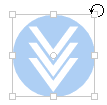
- Move the cursor over one handle (
 ) to rotate the resource around the center point.
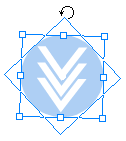
Tip: To rotate several resources at one time, press Shift key to add other resources to the selection.